How To update to V4

Modified on Thu, 29 Oct at 10:35 AM

Follow our step-by-step screenshot guide to update your nodes, with group support available if you need help.

Trusted Smart Chain • Node Update

Your node update,
made simple.

A guided walkthrough for Prosper Wallet and GoFluiid, with clear steps and screenshots to guide you.

01

Prepare
your wallet

02

Copy your
activation key

03

Authorize
access

Thank you for your patience! We’ve organized the update into three sections so you can follow along, one step at a time.

Use the screenshots as you go. Tap or click any image to view it at full size.

Part 1 of 3 • Prosper Wallet

Prepare your wallet

Open Activation Keys in Prosper Wallet before continuing to GoFluiid.

1

Log in to Prosper Wallet

Log in to app.prosperwallet.io.

2

Open Activation Keys

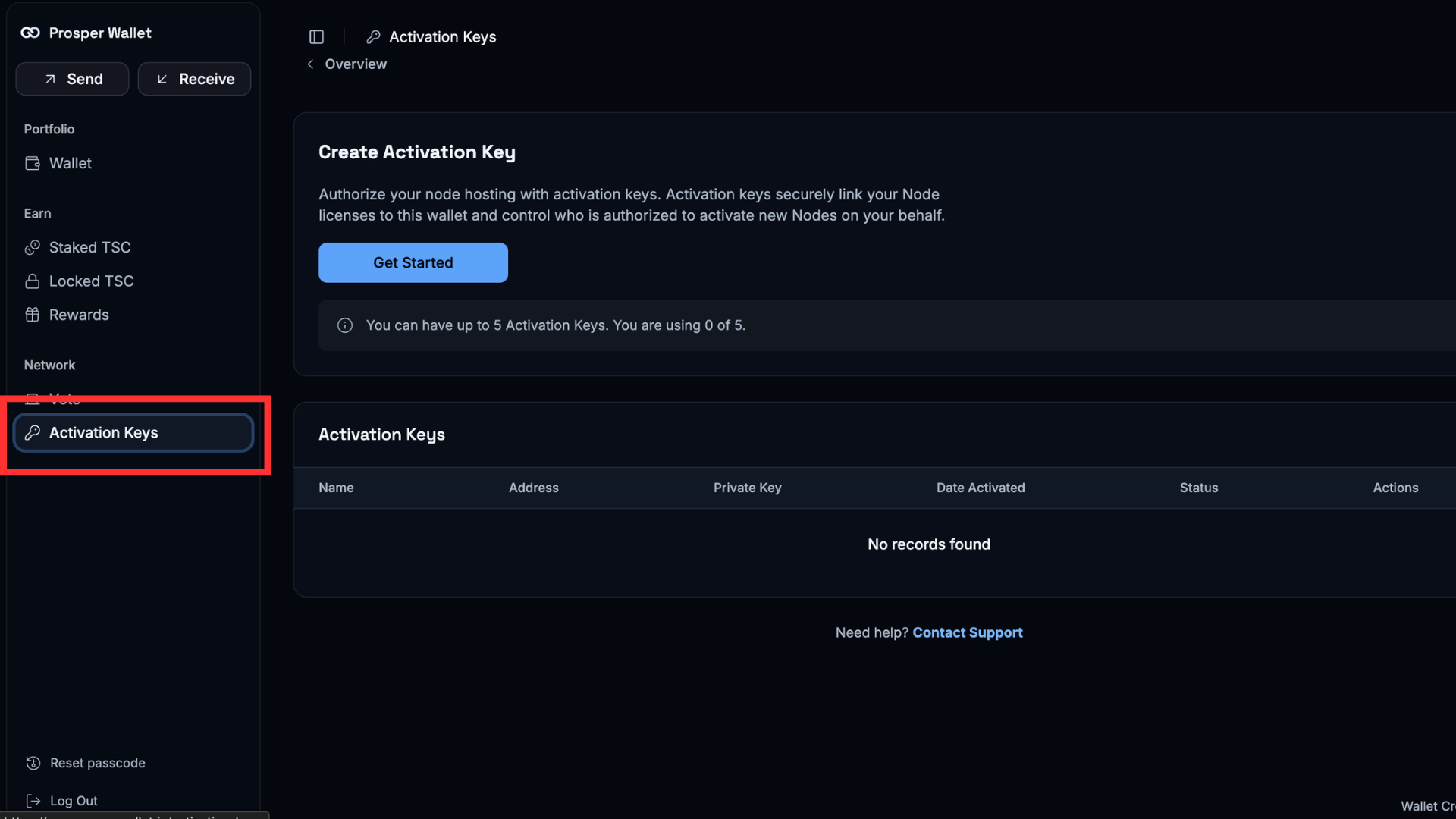
Click Activation Keys, then click Get Started.

Step 2: Open Activation Keys
SCREENSHOT • STEP 02View full size ↗

Part 2 of 3 • GoFluiid

Get your activation key

Open your Account page in GoFluiid and copy your activation key from Profile Information.

3

Log in to GoFluiid

Go to app.gofluiid.com and log in.

4

Open your account

Click Account in the top menu bar.

5

Copy your activation key

Under Profile Information, copy your Activation Key. Make sure you are logged into your own GoFluiid account.

Part 3 of 3 • Prosper Wallet

Authorize your hosting provider

Return to Prosper Wallet to add your activation key, authorize access, and check its status.

6

Add and name your activation key

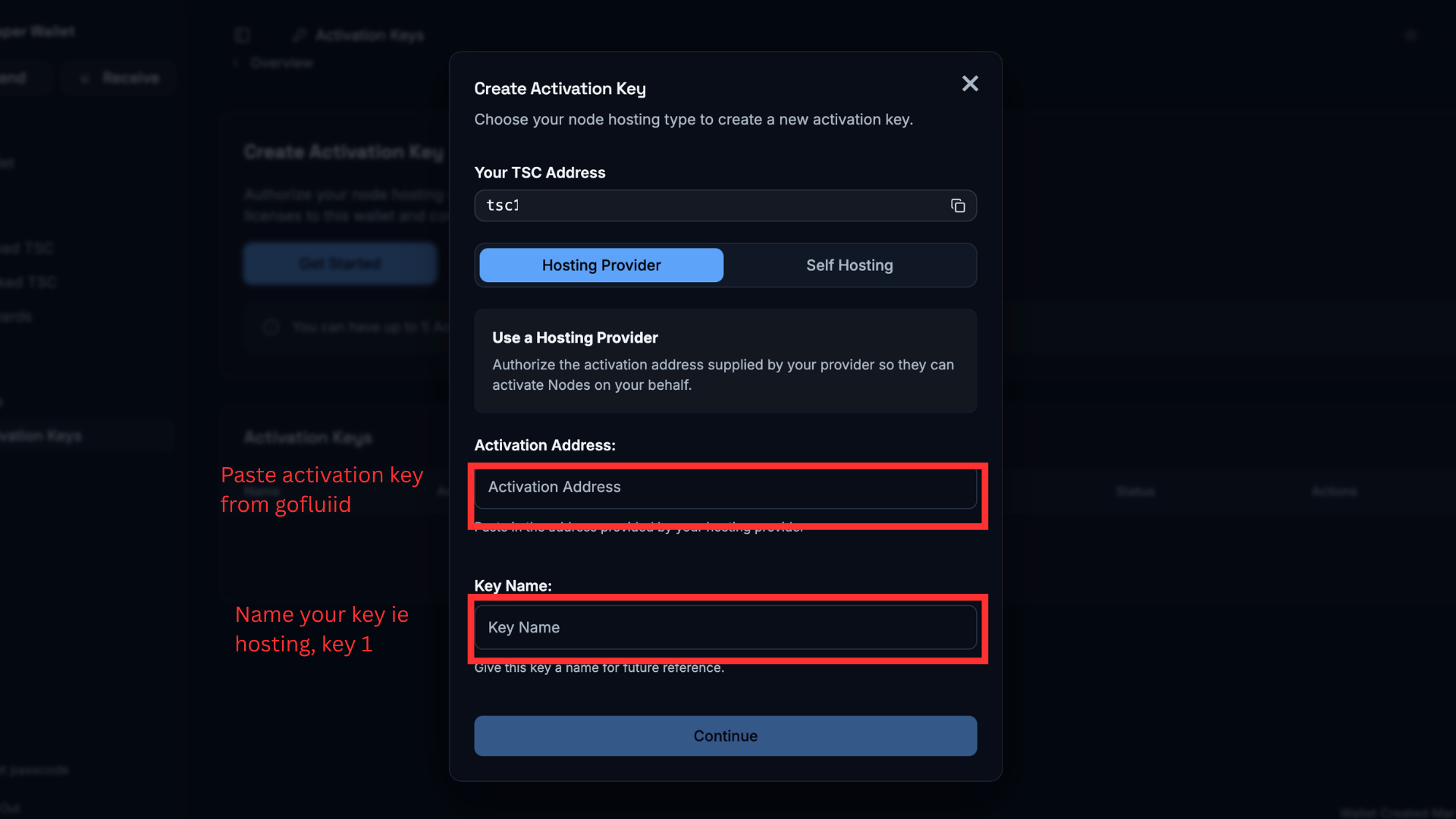
Return to Activation Keys in Prosper Wallet. Paste the key into the Activation Address field and enter a Key Name that is easy to recognize, such as Hosting, Hosting Provider, or GoFluiid. Then click Continue.

Step 6: Add and name your activation key
SCREENSHOT • STEP 06View full size ↗
7

Authorize access

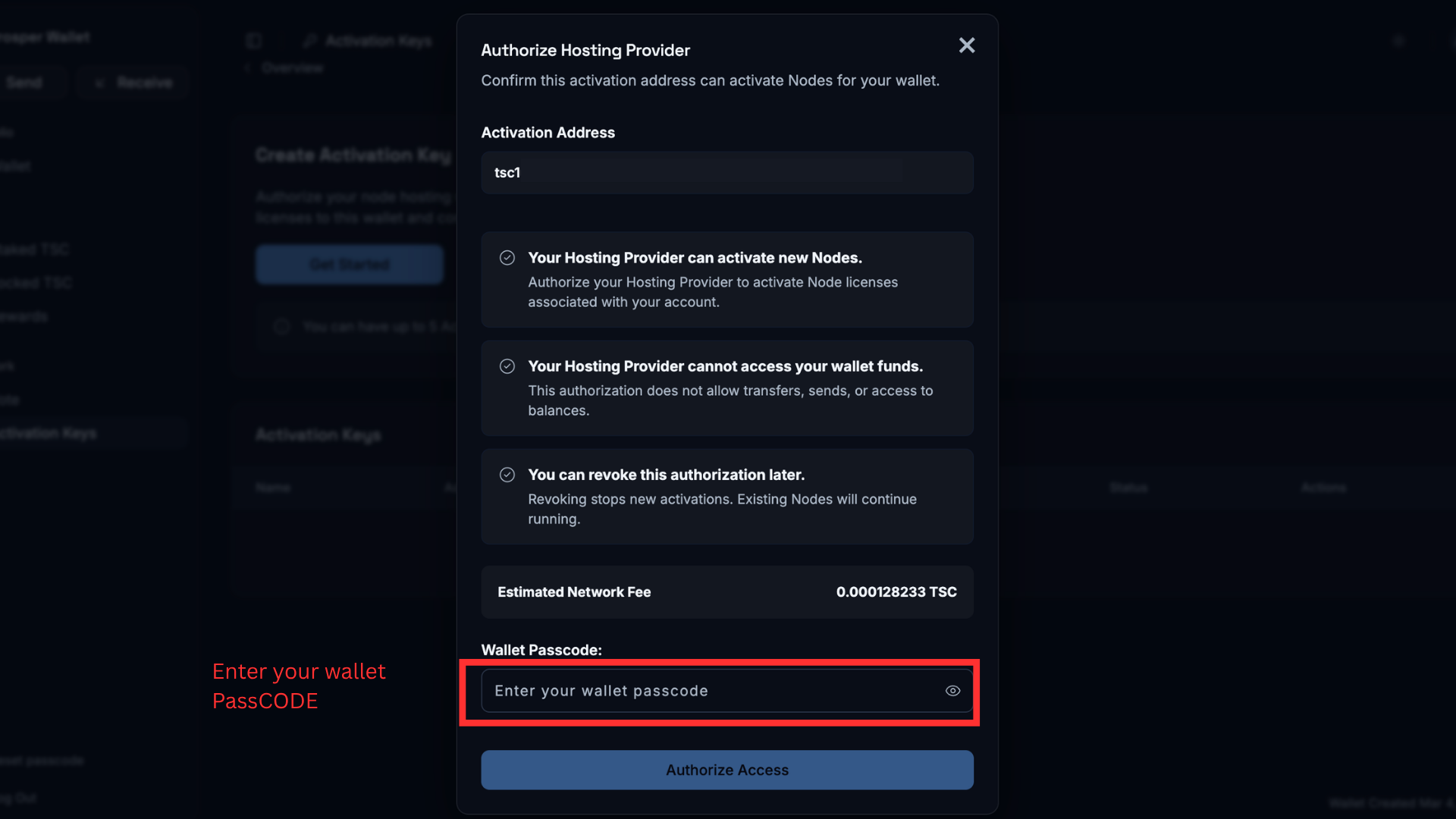
Enter your wallet passcode, then click Authorize Access.

Step 7: Authorize access
SCREENSHOT • STEP 07View full size ↗
8

Check your activation status

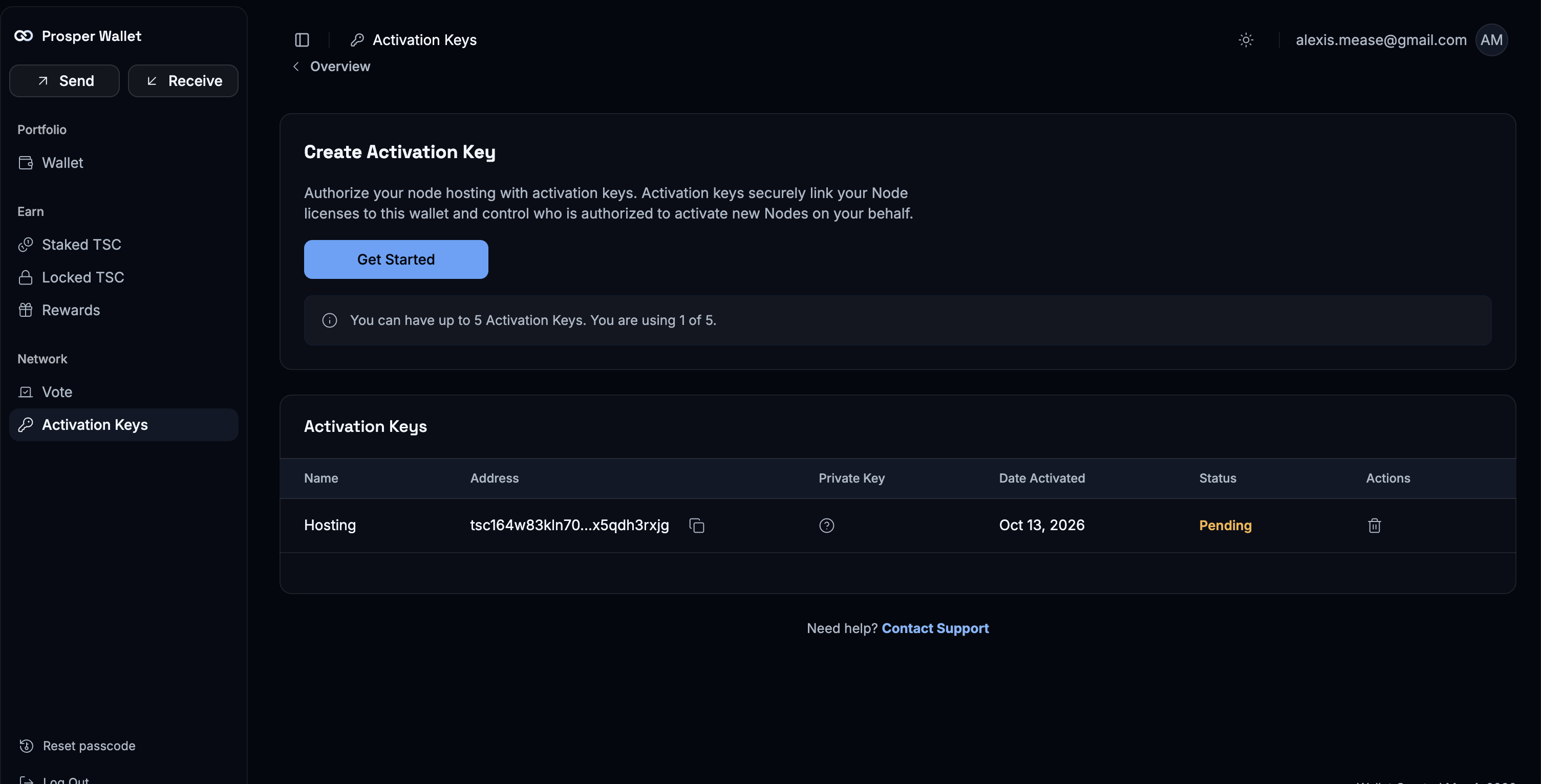
Once you’ve completed the process, your activation key will show Pending in Prosper Wallet. When activation is complete, the status will change to Active.

Step 8: Check your activation status
SCREENSHOT • STEP 08View full size ↗

Trusted Smart Chain Community • Powered by ProsperLiProsperLink LLC

Was this article helpful?

That’s Great!

Thank you for your feedback

Sorry! We couldn't be helpful

Thank you for your feedback

Let us know how can we improve this article!

Select at least one of the reasons
CAPTCHA verification is required.

Feedback sent

We appreciate your effort and will try to fix the article